How to Use Hostinger AI Tools to Build Your Website Faster
Building a website used to mean choosing a theme, wrestling with layouts, writing every line of copy and hunting for stock photos. In 2026 you can skip most of that. Hostinger has put AI into almost every step of the process, from the first idea to the published page, and its AI tools can take you from a blank screen to a live site in a single afternoon.
In this guide you will learn what the main Hostinger AI tools do, how to use them in the right order, and which prompts and habits save the most time.
In this guide: What Hostinger’s AI tools are · Horizons vs. the AI Website Builder · A 7-step workflow · Prompt tips · SEO and content · Mistakes to avoid · FAQ
What Are Hostinger AI Tools?
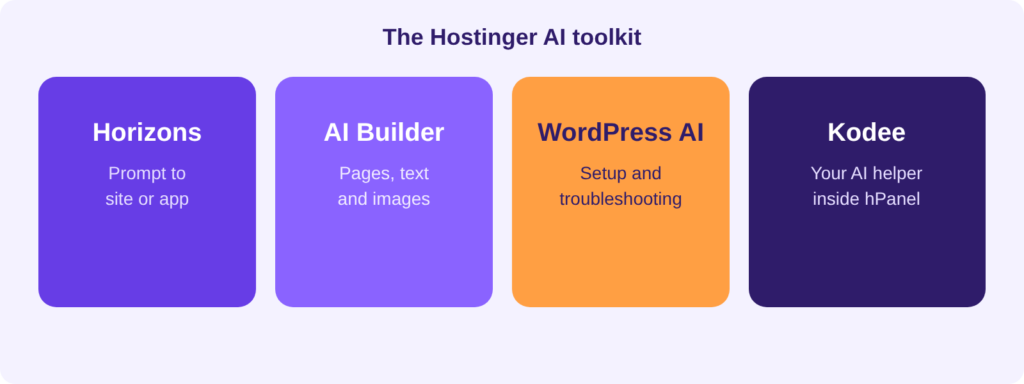
Hostinger AI tools are a set of assistants built into the hosting platform and hPanel dashboard. Rather than being separate apps, they work together with your hosting, domain and email. Here are the ones that matter most when you want to build a website fast:
- Hostinger Horizons: an AI builder that turns a plain-English description into a working, hosted website or web app. You can submit text, voice or image prompts, then keep chatting to change the design or features.
- Hostinger AI Website Builder: a template-and-drag-and-drop builder with AI that generates pages, text and images. Hostinger says around 80% of its Website Builder users start with AI.
- AI tools for WordPress: an AI website builder for WordPress and an assistant in hPanel that helps with setup and troubleshooting.
- Kodee: an AI assistant that answers questions while you build, and Hostinger’s own updates describe it handling admin actions such as migrations, backups and server health checks.
Hostinger Horizons vs. the AI Website Builder: Which Should You Use?
Both save time, but they suit different projects. Use this table to choose.
| Feature | Horizons | AI Website Builder |
|---|---|---|
| Best for | Custom sites, web apps, tools with logins or databases | Business sites, portfolios, blogs, small stores |
| Starting point | A prompt (text, voice or image) | AI questions and templates |
| Editing style | Chat with the AI; code is accessible | Visual drag-and-drop |
| Coding needed | None | None |
| Skill level | Beginner to intermediate | Complete beginner |
Simple rule: if you need a standard brochure site or store, start with the AI Website Builder. If you want something more custom, such as a booking tool, directory or members area, try Horizons. According to reviews published in 2026, Horizons added a built-in backend in February with databases, user authentication, file storage and email.
A 7-Step Workflow to Build Your Website Faster
Step 1: Define your goal before you open the tool
AI works best when you give it clear inputs. Write down your business name, what you offer, your audience, the pages you need and the one action you want visitors to take (call, buy, book or subscribe). Ten minutes here saves an hour of rework later.
Step 2: Choose a plan and domain
Log in to hPanel, go to Websites and click Add website. You will see the AI options there. Plans typically bundle hosting, SSL and a domain, so you do not have to set those up separately. Check Hostinger’s pricing page for current offers, because they change often.
Step 3: Write a strong prompt
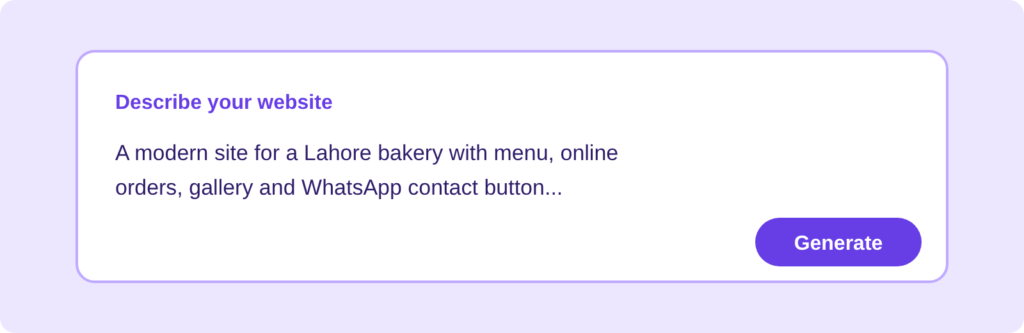
Your prompt is the single biggest factor in the quality of the first draft. A reliable structure is: who it is for + what it offers + pages needed + style + one main call to action.
Example prompt: “Create a website for a local bakery called Sweet Crumbs. Pages: Home, Menu, Gallery, About, Contact. Warm pastel colors, friendly tone. Main goal: visitors place an order through a WhatsApp button.”
If you struggle to write prompts, Hostinger now lets you answer a few targeted questions to generate a full prompt automatically. You can also attach an image or screenshot as a design reference.
Step 4: Review the first draft and refine by chat
Do not expect perfection on the first pass. Look at the structure, then ask for changes one at a time: “Make the hero section shorter,” “Change the color palette to blue,” “Add a testimonials section below the menu.” Small, specific requests give better results than one huge rewrite.
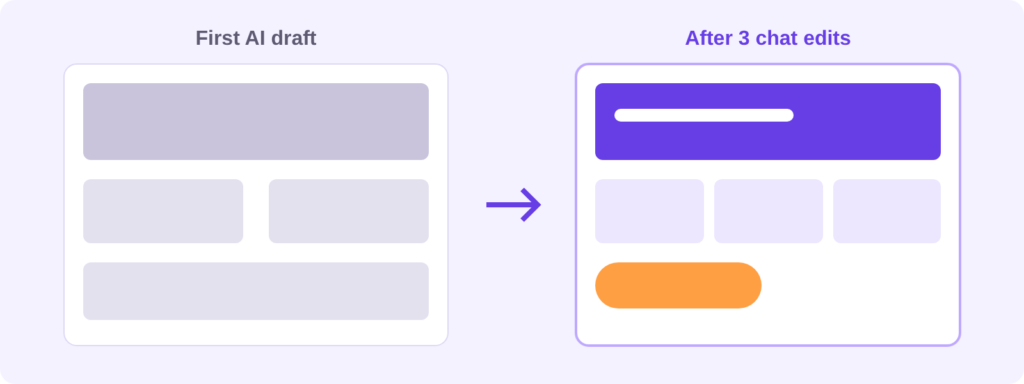
Refine in small steps: layout, colors and call to action each get their own request.
Step 5: Use AI for content, images and SEO
Let the AI write the first version of your headlines, page copy and image suggestions, then edit it so it sounds like you. Add your real details: prices, address, opening hours and photos of your actual work. Also fill in page titles and meta descriptions for each page so search engines understand them.
Step 6: Test on mobile and check speed
Generated sites are mobile-responsive, but always check them yourself. Open the preview on your phone, tap every button, submit any forms and make sure text is readable. Fix anything awkward by asking the AI or using the visual editor.
Step 7: Publish, connect your domain and keep improving
Hit publish, connect your domain and set up a business email. After launch, review your analytics, ask Kodee for help when you hit a snag, and use the AI to add new sections or pages as your business grows. Most builders also keep version history, so you can restore an earlier version if an edit goes wrong.
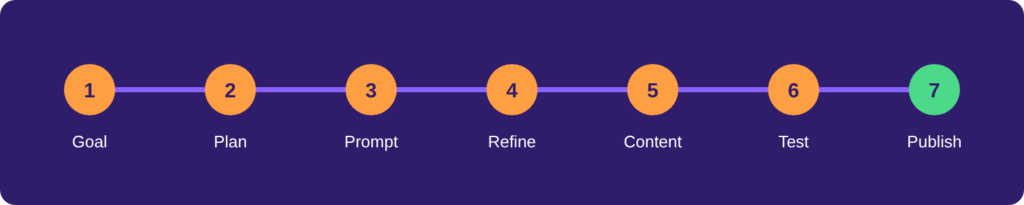
The complete seven-step workflow at a glance.
Prompt Tips That Save Hours
- Be specific about structure. List the pages and sections you want.
- Name a style. Words like “minimal,” “bold,” “luxury” or “playful” guide the design.
- One change per message. It is easier to review and undo.
- Use a reference image. A screenshot of a layout you like communicates more than a paragraph.
- Ask for alternatives. “Give me three headline options” is faster than rewriting yourself.
Common Mistakes to Avoid
- Publishing generic AI text. Add your own voice, facts and local details.
- Skipping SEO basics. Titles, descriptions and headings still matter.
- Asking for too much at once. Build page by page.
- Ignoring mobile. Most visitors will see your site on a phone.
- Forgetting legal pages. Add a privacy policy and contact details where required.
Who Benefits Most from Hostinger AI Tools?
Small business owners, freelancers, bloggers, students and agencies prototyping client ideas gain the most. If you need highly specialised functionality or full control over every technical detail, a hosted builder has limits, and a developer-built or self-managed WordPress setup may suit you better.
Frequently Asked Questions
Do I need coding skills to use Hostinger AI tools?
No. Both Horizons and the AI Website Builder are designed for non-coders, though Horizons also lets you view the underlying code if you want to.
Can I build an online store with AI on Hostinger?
Yes. Reviewers note that Horizons uses the same backend as Hostinger’s website builder, so you can create a store directly inside the platform.
How long does it take to build a website?
The first draft can appear in minutes. A polished, content-ready site usually takes a few hours once you add your own text, photos and settings.
Can I edit the AI-generated site later?
Yes. You can keep chatting with the AI, use visual editing tools and restore earlier versions.
Final Thoughts
Hostinger AI tools will not replace your ideas, but they remove the slowest parts of building a website: layout, first-draft writing and technical setup. Define your goal, write a clear prompt, refine in small steps and add your personal touch. Do that, and you can go from idea to live website far faster than with a traditional builder.
Note: features and pricing change frequently, so confirm current details on Hostinger’s official site before you buy.